



Disclaimer: This article is for general informational purposes only and does not provide legal, cybersecurity, or professional advice. Private browsing reduces local traces on a device, but it does not guarantee anonymity or prevent network-level logging. Readers should follow workplace policies and applicable laws when using privacy tools.
In this guide, the author explains how to use private browsing effectively in everyday situations especially when switching between Google Chrome and iOS devices.
The advice is grounded in real-life usage patterns: quick private sessions for logins, clean testing, shared devices, and travel/public networks. The goal is simple: use an Incognito window or Private session mode intentionally, without overestimating what it can and cannot do.
What readers will learn:
- How a Temporary browsing session actually behaves and what can still stay behind.
- How Cookie isolation, Session cookies, Cache clearing behavior, and Local storage removal work in practice.
- How to pair private browsing with tools such as iCloud Private Relay, App Tracking Transparency, and a VPN (only when appropriate).
- A checklist that prevents “oops” moments such as Download record retention or Session restore risks.
This article explains private browsing mechanics and step-by-step workflows for Chrome and iOS, clarifies limitations (ISP/employer/router visibility), and provides scenario-based checklists plus FAQs.
The honest truth—what private browsing does (and doesn’t) do
A clear definition readers can trust
Private browsing is mainly about History not stored locally on the device after the session ends. It reduces traces on that specific device and keeps some session data separated from normal browsing.
It is not “invisible internet.” IP address visibility still exists to websites, apps, workplace networks, Wi-Fi owners, and internet providers. Private browsing is best viewed as local privacy and session separation, not a cloak.
The 3 main privacy benefits (in plain terms)
Local cleanup by design
Private mode leaves fewer artifacts behind especially around forms, cached files, and session remnants. The Cache clearing behavior is one reason it’s popular with people who want a “clean slate” experience without manually clearing data.
Per-session separation
Private mode is useful for Sign-in separation. It helps avoid the classic “logged into the wrong account” situation, particularly if someone switches between personal and work accounts (or between two client accounts).
Reduced cross-site linking (not elimination)
Private mode can create more friction for trackers, especially when combined with Third-party cookie restrictions and browser-specific Cross-site tracking controls. However, those controls vary by browser and device.
The 3 biggest misconceptions
“It hides activity from the internet provider”
This is the most common misunderstanding. ISP visibility limits do not mean “zero visibility.” Private mode usually does not prevent the ISP from seeing the domains visited (and in some cases, more, depending on device/network configuration).
“It blocks all trackers”
Some Tracker blocking can happen depending on settings, but it isn’t universal. Tracking can also rely on fingerprinting and account sign-ins rather than cookies.
“Nothing is saved”
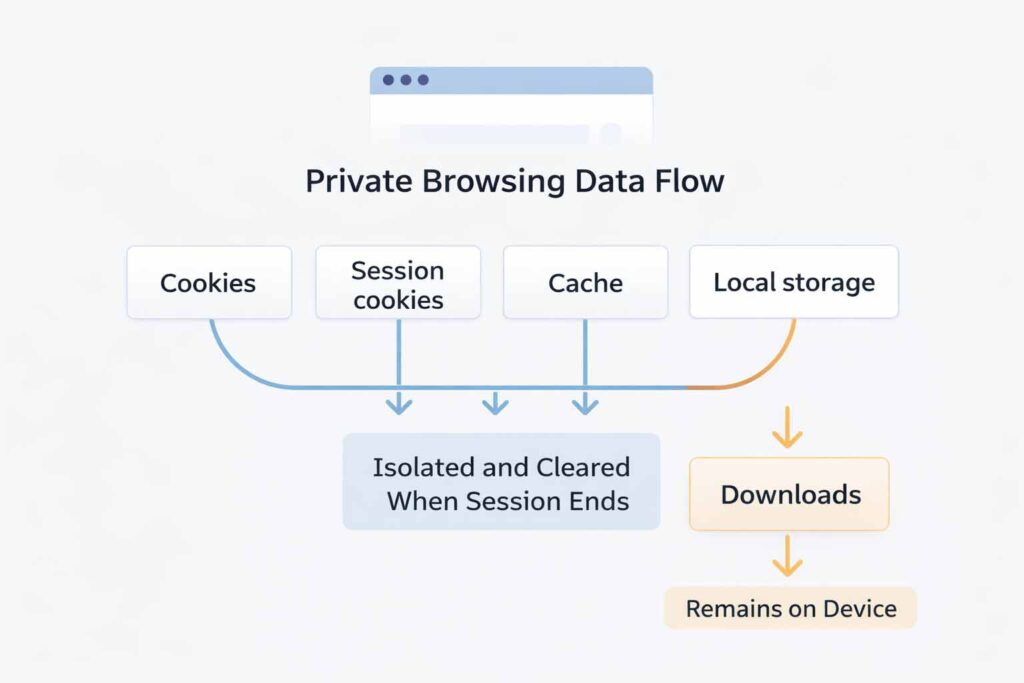
Some things can persist outside the session. Bookmark persistence is deliberate (bookmarks are meant to stay). Also, Download record retention is a real-world gotcha: downloaded files often remain on the device even after private windows close.
Private browsing mechanics—what changes under the hood
Cookies and logins
Cookie isolation vs. logged-in identity
Private browsing commonly uses Cookie isolation to prevent cookies from blending with normal sessions. That’s why it’s useful for testing sites, managing multiple accounts, or signing into a service temporarily.
But identity is still identity. If someone logs in, the service can still know it’s the same account. Private mode doesn’t erase server-side account history.
Session cookies explained (and why they matter)
Session cookies keep a user logged in while the private window remains open. When the window closes, those session cookies are typically wiped from the browser’s private session container so the login often ends.
Storage and cleanup
Local storage removal (typical behavior)
Many modern websites store preferences in local storage. In private mode, a browser usually keeps that data only for the session and triggers Local storage removal when the private session ends.
Cache clearing behavior (why it helps troubleshooting)
Private mode reduces stale caching effects, so it’s useful for troubleshooting: if a site behaves oddly in regular mode but fine in private mode, the issue may be related to cached scripts, cookies, or local storage.
Identity signals private mode does not erase
Fingerprinting mitigation (partial, not perfect)
Some browsers attempt Fingerprinting mitigation, but it’s not comprehensive. Sites can still infer patterns and correlate Device-level identifiers (hardware and software signals) even when cookies are minimized.
DNS caching and what networks can see
DNS caching can happen at multiple layers device, router, or network resolver. That means private browsing may prevent local history from saving, but it cannot guarantee that network infrastructure won’t have records.
Permissions and prompts
Site permission resets (sometimes)
Private mode can reduce how long permissions stick around, which aligns with Site permission resets. Still, permission behavior varies by browser and OS version.
Location access prompts
Because private sessions are meant to be temporary, users may see repeated Location access prompts (for maps, local weather, etc.) if permissions aren’t persisted.
Chrome private browsing workflow on desktop (Windows/macOS)
Quick start + safety baseline
Open and confirm you’re in Incognito
On desktop, private browsing in Google Chrome is usually obvious: the UI changes, and Chrome labels the session. People use an Incognito session for fast “separate login” tasks: checking an email inbox once, logging into a client portal briefly, or testing a landing page without personalization.
Extension behavior in private mode (audit this first)
Many people never check Extension behavior in private mode, and it matters. If an extension is allowed in private mode, it may still read page data or interact with content. The practical rule used by cautious users is simple: allow only essential extensions, and deny everything else by default.
Experience note (first-person field report): I learned this the hard way while testing a site: a coupon/price-check extension was enabled in private mode and kept injecting UI elements into pages. The “clean test” wasn’t clean at all. After disabling the extension for private sessions, results became consistent.
Prevent account mix-ups with sign-in separation
Account logout hygiene
Private mode helps reduce account mixing, but it doesn’t eliminate human error. Good Account logout hygiene is still recommended for sensitive services. If a person logs into banking or HR tools, it’s smart to sign out before closing the private window especially on shared devices.
Autofill suppression and password prompts
Private mode often reduces accidental saving, but it’s not magic. Autofill suppression varies. Password manager prompts may still appear, depending on whether the device uses built-in managers or browser-integrated prompts.
Reduce “unwanted memory” in the browser UI
Address bar suggestions and search leakage
Private mode helps, but Address bar suggestions can still appear due to synced history or the operating system’s suggestions. Also, Search suggestion leakage can occur if the user is signed into a search engine account or has web/app activity enabled elsewhere.
A practical approach is to treat private mode as one layer. If privacy matters, the user should also check account-level activity and sync settings.
Clean exits that prevent surprises
Tab close cleanup
A habit that works well is Tab close cleanup: close sensitive tabs first, then close the private window. It sounds trivial, but it reduces accidental “reopen” moments when a browser session crashes.
Session restore risks + closed-tab recovery
People assume private sessions can’t come back. In reality, Session restore risks exist especially if the browser crashes or the OS tries to restore previous activity. Closed-tab recovery features can also confuse users who reopen tabs quickly. The safest approach is a full private-window close and (when needed) a full browser restart.
Chrome on iOS—what’s different (and how to use it effectively)
Why iOS behavior can feel inconsistent
Chrome on iOS operates within Apple’s platform constraints. Under the hood, iOS browsers are influenced by system-level frameworks, and behavior can differ from desktop expectations.
Users can still run a private session, but the surrounding ecosystem (sharing sheets, default browser behaviors, and OS suggestions) may influence what they see.
Step-by-step: private session mode in Chrome on iPhone/iPad
iPhone workflow
On iPhone, private mode is ideal for quick tasks: checking a reservation, logging into a secondary account, or using a shared device briefly. It’s also useful when someone wants a “fresh” browsing state without clearing the main browser.
iPad workflow
On iPad, private mode becomes more powerful for multi-user households. The larger screen makes account switching easier, and private sessions reduce cross-account confusion particularly when different family members share one device.
Handling credentials safely on iOS
Apple ID, passwords, and prompts
If a user relies on an Apple ID, private sessions can still interact with saved credentials, depending on device settings. iCloud Keychain may offer suggestions.
The newer Apple Passwords app (where available) can also supply credentials. The key is intentionality: private browsing is not the same as “no credential access.”
Keychain Access (macOS cross-device implication)
On macOS, Keychain Access and sync preferences can influence what autofill suggestions appear. If the user doesn’t want those suggestions during a private session, they may need to adjust broader system or browser settings.
Prevent synced history from “leaking” into other devices
If Chrome is signed into a Google Account, users should consider preventing synced history from recording visits. Private mode may help locally, but cross-device syncing and account activity can still create traces if settings allow it.
Private Browsing on Safari for iOS users (important context)
Why Safari matters even when someone “uses Chrome”
Even if a user prefers Chrome, iOS often routes certain actions to Apple Safari by default. That’s why understanding Safari private browsing is part of using private mode effectively on iOS.
Safari privacy foundations users should understand
Intelligent Tracking Prevention and WebKit
Safari’s privacy approach relies heavily on Intelligent Tracking Prevention and WebKit. These frameworks help reduce certain categories of tracking, especially cross-site tracking patterns.
Private session mode in Safari
Safari’s private windows focus on local data minimization and session isolation. In practice, Safari private sessions can be very effective for reducing local traces on a device particularly when used alongside Apple’s OS-level privacy controls.
Apple privacy stack that pairs well with private browsing
iCloud Private Relay
When available, iCloud Private Relay adds a network-layer privacy component beyond private mode. It can reduce exposure of browsing metadata to local network observers in some scenarios (availability depends on region and settings).
App Tracking Transparency
App Tracking Transparency affects app-level tracking across iOS. Private browsing helps in-browser, while ATT reduces cross-app tracking pressure that a browser cannot fully control alone.
Layered privacy—when private browsing is enough, and when it isn’t
does privacy mode hide activity from your internet provider
Private mode is not designed to hide activity from a provider. It prevents the browser from storing local history in the usual way, but the network still routes traffic. This is why users should understand the boundary between local privacy and network visibility.
A helpful mental model: private browsing protects against the next person who uses the device, not against the network that carries the traffic.
when you should use a VPN instead of privacy mode
A VPN can be appropriate when the privacy concern is network-level observation, such as public Wi-Fi risks or certain workplace travel situations (always within lawful and policy-compliant use). Providers such as NordVPN and Proton VPN are commonly discussed in consumer contexts, but the core concept matters more than the brand: a VPN changes how traffic routes from the device to the broader internet.
Private mode and a VPN solve different problems. Private mode reduces local traces; a VPN can reduce local network visibility.
DNS choices and why they matter (non-technical, actionable)
DNS often gets ignored, yet it influences privacy. Services like Cloudflare 1.1.1.1 and OpenDNS are examples of DNS resolvers. Changing a resolver doesn’t “make someone anonymous,” but it can alter how queries are handled and logged. Also remember: DNS caching can occur at multiple layers regardless of private mode.
Tor and “high-privacy mode” options (use carefully)
For legitimate, high-privacy needs, Tor Browser is an option though it comes with tradeoffs (slower performance, some sites block it, and user experience friction). Other browsers often discussed in privacy conversations include Brave Browser, Mozilla Firefox, and Microsoft Edge, and behavior can differ across ecosystems like Android versus iOS.
On the industry side, Chrome’s evolution is influenced by the Chromium Project, and privacy changes in ad-tech are shaped by initiatives like Privacy Sandbox. The practical takeaway for everyday readers: privacy features change over time, so settings and defaults should not be assumed.
Public Wi-Fi: what works in real life
Public Wi-Fi privacy checklist (practical routine)
A realistic routine includes:
- Prefer sites that use HTTPS encryption.
- Do not ignore Certificate warnings.
- Consider a VPN on unknown networks (when appropriate).
- Close the private session fully when finished.
Real-world scenarios and checklists (experience-driven, practical)
steps to browse on a shared computer without leaving traces
This scenario is one of the best uses of private browsing. A practical playbook looks like this:
- Open a private window and keep the session focused (one purpose).
- Avoid downloads; if a download is necessary, handle it immediately because Download record retention can leave files behind.
- Avoid saving bookmarks because Bookmark persistence is permanent by design.
- Do not enable extensions in private mode unless required (Extension behavior in private mode).
- Sign out of sensitive services before ending the session (Account logout hygiene).
- Close the private windows and verify nothing remains open (Tab close cleanup).
minimizing local traces on a shared household computer
For households where multiple people share a laptop, private mode is a helpful habit but not the only layer. A good approach is to combine private sessions with Shared computer best practices:
Shared computer best practices checklist
- Use a separate OS profile if possible (so files and settings don’t blend).
- Do not enable browser sync on shared profiles.
- Avoid saving passwords on shared accounts.
This reduces the chance that private browsing becomes the “only defense” when the bigger risk is shared settings and shared sign-ins.
separating work and personal browsing sessions safely
This is an increasingly common problem in the U.S., especially for people who work hybrid or use the same device for personal tasks. Private browsing is useful for separation, but readers should remember Workplace network monitoring is a real factor if the device or network is managed by an employer.
If a device is employer-managed, the safest approach is to assume the organization can log activity within policy and lawful boundaries.
testing websites without cached content affecting results
Private mode is excellent for QA. When testing websites without cached content affecting results, private sessions reduce interference from stored cookies, cached scripts, and local storage. The Cache clearing behavior in private sessions makes it easier to see how a page behaves for “first-time” visitors.
troubleshooting login issues with a clean session
When troubleshooting login issues with a clean session, private mode helps confirm whether a login issue is caused by cookies or stale storage. Cookie isolation and session-only storage reduce old state conflicts, and Local storage removal after closing a session resets many site preferences.
managing one-time logins without saved cookies
For travel portals, temporary admin logins, or quick account checks, managing one-time logins without saved cookies is exactly what private mode is for. The user logs in, completes the task, then closes the private window. The session cookies disappear, and the “log in again” step returns next time by design.
how to avoid staying signed in across sessions
The simplest answer to how to avoid staying signed in across sessions is to close the entire private window, not just one tab. People often close a tab and assume the session ended. If the private window is still open in the background, the session may persist.
What gets erased vs. what remains (kept unambiguous)
what gets erased after closing a privacy window
Typically, private browsing clears:
- The private session’s browsing history within that session
- Many session cookies and temporary site data tied to the private container
- Temporary session storage (often including local storage in that container)
However, exact behaviors vary by browser and OS. The consistent concept is: private mode is designed to minimize local traces created during that session.
why downloaded files remain after a private session
This catches people off guard. why downloaded files remain after a private session is simple: downloads are stored by the operating system file system, not as “browser history.” Private browsing can remove the browsing record, but the file still exists unless the user deletes it.
Practical step: after using private mode on a shared device, check the Downloads folder and remove any sensitive files.
difference between privacy mode and clearing browser data
The difference between privacy mode and clearing browser data is intent and scope:
- Private mode is forward-looking (it tries not to store new traces for that session).
- Clearing browser data is backward-looking (it removes stored traces from previous sessions).
Clearing browser data can be helpful for troubleshooting or device hygiene, but it can also log a user out of everything and delete stored preferences so it should be used intentionally.
can sites still recognize you without saved history
Yes. can sites still recognize you without saved history is where expectations need to be realistic. Recognition can come from:
- Account sign-ins (most powerful)
- IP address and network identifiers (IP address visibility still exists)
- Fingerprinting patterns (even with partial Fingerprinting mitigation)
keeping site permissions from persisting after a session
If readers care about keeping site permissions from persisting after a session, private mode helps because permissions are less likely to stick. Still, it’s smart to watch prompts carefully and avoid allowing more than necessary.
This is where Site permission resets can be beneficial: private mode encourages a “deny unless needed” posture.
preventing forms from saving addresses and cards
preventing forms from saving addresses and cards is partly about private mode and partly about settings. Private mode reduces stored form memory in many cases, but OS-level suggestions and password managers can still offer data.
Users who want to minimize this should disable address/card saving features in the browser and review device autofill settings.
Reducing tracking while signed into accounts
how to reduce tracking while signed into accounts
how to reduce tracking while signed into accounts requires an honest strategy. If a user is signed in, the account can tie activity together even if cookies are minimized. Practical steps include:
- Use separate browser profiles for different identities.
- Use private sessions for sensitive searches.
- Consider privacy-focused search (many people use DuckDuckGo for this).
avoiding personalized ads after sensitive searches
For avoiding personalized ads after sensitive searches, private mode helps, but it is not the only lever. A strong tactic is Ad personalization reduction through account settings (Google and Apple both offer ad personalization controls). Pair that with private sessions when doing sensitive research.
keeping private activity out of search recommendations
keeping private activity out of search recommendations often requires checking account-level settings. Private mode can reduce local storage effects, but search recommendations can be influenced by signed-in history, device usage patterns, and syncing. Users should review search account activity settings if this is a priority.
preventing cross-device activity from appearing in suggestions
If readers care about preventing cross-device activity from appearing in suggestions, sync settings matter. Signed-in ecosystems (Chrome + Google, iOS + Apple) can propagate suggestions across devices. The best approach is to audit sync, history, and “activity” settings to align behavior with the desired privacy level.
stopping auto-suggestions from revealing past sites
stopping auto-suggestions from revealing past sites is usually a combination of:
- disabling certain suggestion features,
- clearing suggestion sources (where appropriate),
- and understanding that Address bar suggestions can be influenced by both browser history and synced/account history.
Network visibility—router logs, employers, and what private mode cannot change
Router logging in home and public networks
Router logging can exist in home routers, public hotspots, and enterprise networks. Private mode does not control what a router records. It controls what the browser stores locally.
This is the clean boundary to remember: private mode is not a network privacy tool.
what employers can still log on a managed network
what employers can still log on a managed network depends on device management, network policy, and lawful compliance. In many managed environments, employers can log:
- domains accessed,
- security events,
- device-level telemetry,
- and traffic patterns.
This is why Workplace network monitoring should be assumed on managed devices and networks, and why private browsing should not be treated as an invisibility feature in those contexts.
HTTPS encryption and certificate warnings (risk management reminder)
Private browsing doesn’t replace secure transport. HTTPS encryption reduces exposure of content in transit, and Certificate warnings should be treated seriously especially on public networks.
How to check and prove privacy posture (verification steps)
how to check what data websites can still see
A practical way to answer how to check what data websites can still see is to focus on what is inherently visible:
- IP and approximate location (network-provided)
- browser and device characteristics
- active login state
- permissions granted
Private mode changes local storage behavior and reduces some cookie persistence, but websites can still see many technical signals.
verifying tracking is limited using privacy dashboards
For verifying tracking is limited using privacy dashboards, readers can use Privacy reporting dashboards where available:
- Browser privacy reports (if supported)
- Account activity pages for Google/Apple ecosystems
- Device privacy indicators for permissions
Experience note (first-person field report): When I test whether private sessions are “clean,” I use a simple method: I open a private session, visit a site that normally recognizes returning visitors, and check whether personalization is reduced. Then I compare with account activity dashboards. If the account is signed in, I treat the session as “locally private, not globally invisible.”
Consumer privacy expectations in the USA (non-legal, practical)
In the U.S., privacy expectations are shaped by regulators and state laws. The Federal Trade Commission (FTC) is relevant to consumer protection and deceptive practices, and the California Consumer Privacy Act (CCPA) is a major reference point for privacy rights and disclosure norms.
This article is not legal advice, but the practical message is consistent: be transparent about data handling and respect user expectations.
Security guidance anchors (best-practice orientation)
For organizations and many security professionals, National Institute of Standards and Technology (NIST) publications are common reference points for best-practice security thinking. The practical alignment for everyday users is:
- least-privilege permissions,
- strong authentication,
- safe network practices,
- and avoiding over-trusting a single tool.
Quick-reference: an “effective private browsing” checklist (printable)
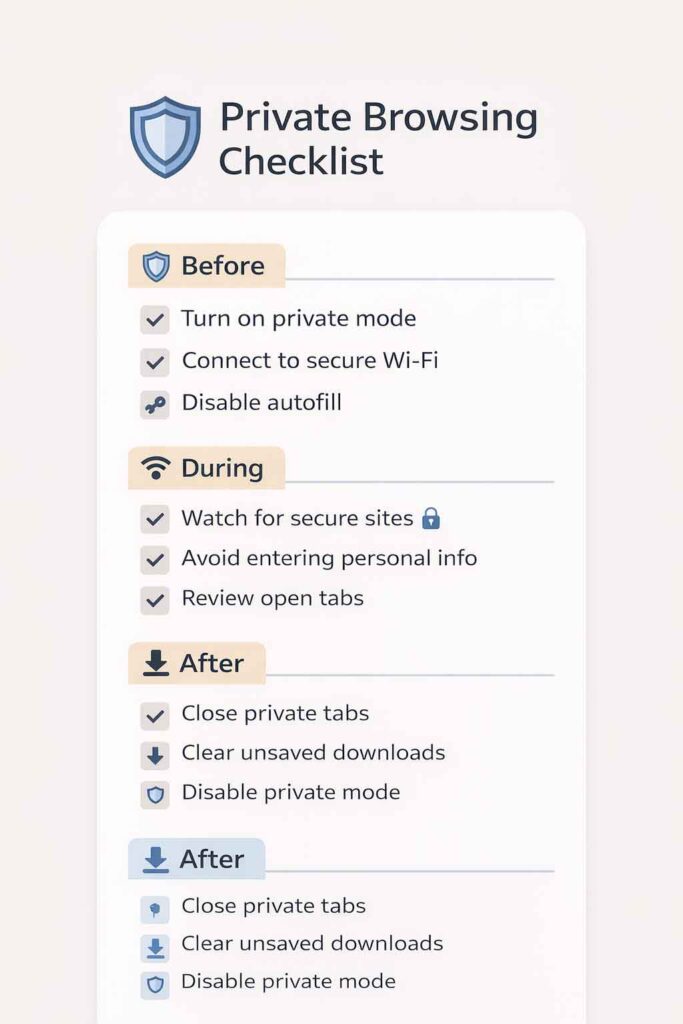
Before starting
- Choose private browsing (Chrome or Safari private session).
- Review Extension behavior in private mode and disable non-essential extensions.
- Decide whether a network layer is needed (VPN or Private Relay) based on context.
While browsing
- Limit permissions; treat Location access prompts as a decision, not a reflex click.
- Avoid downloads unless necessary (remember Download record retention).
- Do not rely on private mode for anonymity; remember IP address visibility.
When finishing
- Close the private windows completely (how to close all private windows quickly).
- Confirm sign-out when needed (Account logout hygiene).
- If it was a shared device, check Downloads and recent files and clean up.
FAQs
FAQ 1 — how to close all private windows quickly
On desktop, the fastest method is closing the entire private window rather than individual tabs. On iOS browsers, users should close all private tabs and then switch back to regular tabs to confirm nothing private remains open. If a device supports app switching, fully closing the browser app can also end the session container.
What the author recommends: close the private window first, then verify no private indicator remains in the tab switcher.
FAQ 2 — what private mode does not protect against
Private mode does not prevent network observers from seeing where traffic is going, and it does not stop websites from recognizing a signed-in user. It also doesn’t eliminate fingerprinting risks or guarantee that downloads disappear.
What the author recommends: treat private mode as “local cleanup,” and add VPN/Private Relay only when the concern is network visibility, not just local history.
FAQ 3 — preventing synced history from recording visits
If Chrome is signed into a Google account, users should review sync and activity settings. Private mode may reduce local history, but account-level settings can still record activity depending on configuration.
What the author recommends: audit browser sync, account activity controls, and device-level settings especially if multiple devices are connected to the same identity.
FAQ 4 — preventing session restore from reopening sensitive pages
Crashes and restore features create risk. If a private session is used for sensitive pages, users should avoid leaving the private window open in the background and should close it fully after completing the task.
What the author recommends: adopt a “single-purpose private session,” then close the window and restart the browser if the device is shared or unstable.
FAQ 5 — how to handle saved passwords during temporary browsing
Private mode can still show password suggestions depending on device and browser. If the device is personal, password managers can be convenient; on shared devices, they can be risky.
What the author recommends: on shared devices, avoid saving credentials and consider disabling password prompts for the session; on personal devices, use a trusted manager intentionally and sign out after use.
FAQ 6 — reducing browser fingerprinting signals in everyday use
Fingerprinting depends on device and browser signals. Users can reduce risk by limiting extensions, keeping browsers updated, and avoiding unusual configurations that create a distinctive profile.
What the author recommends: minimize extensions, avoid enabling private-mode extensions unless necessary, and keep the browser and OS up to date for security improvements.
FAQ 7 — Does Incognito stop tracking if signed into a Google Account?
No. If a user is signed into a Google Account, the account can still associate actions with that identity depending on account activity settings. Incognito primarily limits local storage and local history.
What the author recommends: if account-level privacy matters, review Google activity controls and consider signing out before starting the private session.
FAQ 8 — browsing privately on public Wi-Fi without leaks
Private mode helps reduce local traces, but public Wi-Fi risks are network-level. Users should prefer HTTPS pages, pay attention to certificate warnings, and consider a VPN or iCloud Private Relay when appropriate.
What the author recommends: combine private browsing with secure transport and avoid sensitive logins on untrusted networks unless protection is in place.
FAQ 9 — Why do address bar suggestions still appear in private browsing?
Suggestions can come from synced history, OS-level suggestions, or account-based recommendations rather than local browsing history alone.
What the author recommends: check sync settings, disable suggestion sources that are not needed, and remember that private mode reduces local traces but doesn’t necessarily silence account-driven suggestions.
FAQ 10 — What can a website still see in private mode?
A website can still see an IP address, browser characteristics, approximate location, and whether the user is signed in. It may also infer patterns through fingerprinting even without cookies.
What the author recommends: treat private mode as a local privacy feature, and use additional layers (VPN/Private Relay, permission discipline, minimal extensions) when the threat model requires it.
Conclusion
Used correctly, private browsing is a Temporary browsing session tool that reduces local traces and improves session separation especially when juggling multiple accounts or using shared devices. It works best when readers treat it as local hygiene rather than total invisibility.
Network observers (ISPs, routers, workplaces) and logged-in accounts can still create records, and fingerprinting can still correlate behavior even with partial protections.
The most effective approach is layered and realistic: use private mode for local cleanup, keep extensions controlled, manage permissions thoughtfully, and add network protections only when the risk is network visibility.
This is the workflow experienced users rely on to avoid account mix-ups and reduce leftover data without turning every browsing moment into a complicated ritual.
Author Bio
Author Bio: Silvia Heart writes practical privacy and tech guides focused on everyday browsing habits, device settings, and real-world risk reduction for regular users. Published by Ahmed Saeed.