


Disclaimer: This article is for general educational purposes only and does not constitute legal, financial, or cybersecurity advice. Always follow your provider’s security guidance and use features that match your risk level.
Most people don’t wake up one morning excited to organize logins. They do it after a scare: a weird password reset email, a bank text they didn’t request, or a streaming account suddenly “in use” somewhere else.
This password manager setup guide is designed for that exact moment fast, practical, and calm. In about 10 minutes, readers can move from messy, reused passwords to a cleaner system that is easier to live with and harder to break.
Why a password manager matters in the USA right now
The real-world problem (and why it keeps happening)
In the United States, online life is tightly tied to daily essentials: email, banking, subscriptions, healthcare portals, shopping, and workplace tools.
The problem is that many accounts still share the same handful of passwords. People intend to stop reusing passwords, but the friction of creating and remembering new ones pushes them back into old habits.
Attackers don’t need magic; they use volume. If one site leaks logins, those credentials get tested elsewhere.
That’s how ordinary users end up needing to protect accounts from hacking even when they don’t feel “important.” The more accounts reuse passwords, the easier it is to prevent credential stuffing only after the damage is done.
A password manager changes the math. It makes strong, unique passwords realistic for normal people without turning every login into a “forgot password” event.
What “better” looks like (measurable outcomes)
A good setup produces noticeable outcomes within a week:
- Fewer password reset loops
- Faster logins (especially on mobile)
- Less anxiety about breaches and reuse
- A more consistent system to improve online account security without constantly “working on security”
The point is not perfection. The point is a stable baseline that holds up when life gets busy.
How password managers protect you (without the jargon overload)
The core idea: a locked vault + strong encryption
A password manager stores credentials inside a vault that’s locked behind one main secret. That vault uses encrypted password storage, and reputable services implement end-to-end encryption for logins so the information is protected in storage and during sync.
In plain terms: the vault is useless to anyone who doesn’t have the unlock method.
What “zero-knowledge” means in practice
Many reputable managers describe zero-knowledge encryption. For everyday readers, the practical meaning is simple: the provider is structured so it cannot read the contents of the vault. That reduces the risk that a vendor employee, a vendor breach, or an internal mistake exposes the vault contents in readable form.
Security primitives you’ll see in product docs (quick primer)
Some product pages mention terms like AES-256, PBKDF2, or Argon2. Readers do not need to be cryptography experts, but it helps to know these labels usually indicate how the vault is protected and how the master password is processed. On modern Apple devices, security is also reinforced by hardware features such as the Secure Enclave.
Your login flow, simplified
A good manager creates a consistent secure sign-in workflow:
- Open a site or app
- Autofill the correct login
- Vault locks again quickly when inactive
Where many people accidentally weaken the setup is leaving the vault unlocked “for convenience.” Convenience is fine but it needs guardrails (timeouts and device locks) so convenience doesn’t become exposure.
Practical note: A secure setup is not about adding endless steps. It is about adding the right steps once and then letting the system run.
Choosing the right password manager for US users
Built-in vs dedicated apps (when each is enough)
For some households, built-in solutions are “good enough,” especially if everyone uses the same ecosystem:
- Apple iCloud Keychain works well in Apple-only environments
- Google Password Manager can be convenient for Android-centric users
- Microsoft Edge Password Manager fits Windows-first workflows
- Google Chrome password manager is common for browser-heavy users
- Mozilla Firefox Lockwise appeals to Firefox users who prefer a tighter browser workflow
Built-ins can be solid for a single ecosystem and a single user. Dedicated apps tend to win when households are mixed-device, when sharing is needed, or when advanced recovery and auditing features matter.
Dedicated tools worth comparing (examples, not endorsements)
Readers will see many reputable options in the US market, including: 1Password, Bitwarden, Dashlane, NordPass, Keeper Security, LastPass, RoboForm, Proton Pass, Enpass, Zoho Vault, and LogMeOnce. The goal is not to chase the “best” brand; it is to choose a password manager app that fits devices, budget, and sharing needs.
This is where usability becomes a security feature. The easiest way to manage logins is the one a household will actually use every day. For many readers, evaluating privacy-friendly security tools is also part of the decision (data collection, transparency, and security posture).
What to evaluate (USA-specific buying checklist)
A practical comparison checklist:
- Works on the devices used daily
- Supports quick import and clean export
- Has clear recovery and support paths
- Offers sharing options if families or teams need it
- Fits the reality of how people actually log in (browser + mobile + occasional tablet)
If readers are unsure, the best approach is to pick one reputable option, set it up correctly, and commit for 30 days. Most abandonment happens from incomplete setup not from the tool itself.
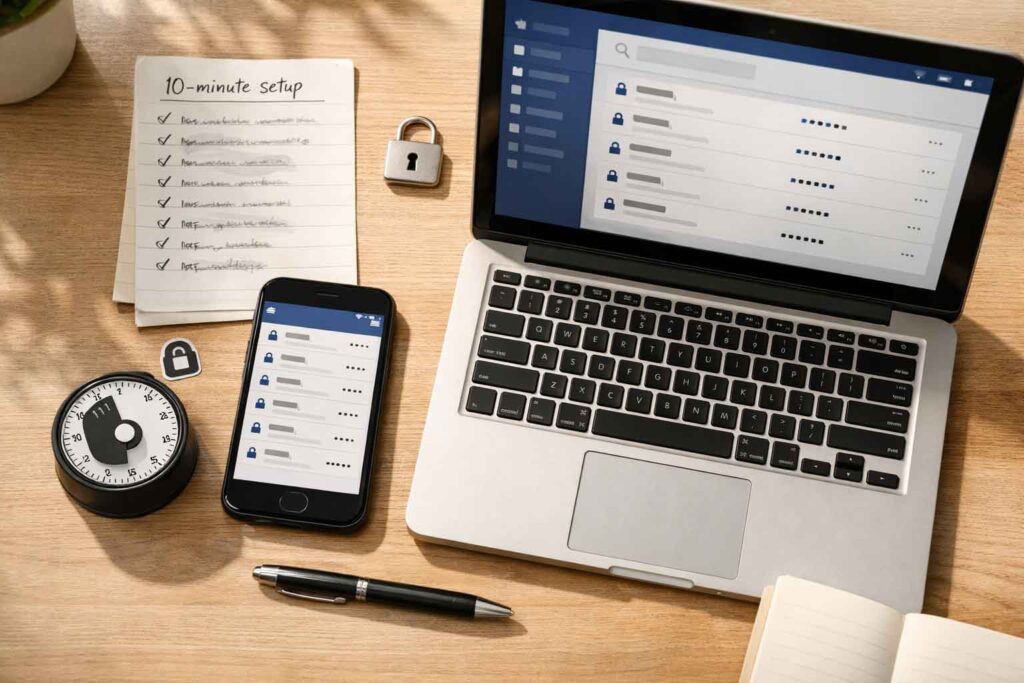
Password Manager Setup Guide: the 10-minute checklist (Step-by-step)
This section is meant to be followed like a timed sprint. The goal is not to finish everything in 10 minutes; the goal is to finish the foundation that prevents the most common failures.
Minute 0–1 — Install and sign in on your devices
Start with the two devices most people use daily: phone + laptop. Common combinations include Android or iOS on the phone, plus Windows 11 or macOS on the computer.
During sign-in, confirm cross-device password syncing is enabled (or available) so changes made on one device show up on the other. This prevents the classic problem where a password is updated on a laptop and forgotten on the phone.
Quick success check: Log in on both devices before moving on.
Minute 1–3 — Create the vault and lock it correctly
Now it’s time to set up a password vault. The vault is the “home” of credentials, and it needs to be protected in a way that is secure and usable.
Focus on password vault security early:
- Turn on auto-lock
- Require unlock after short inactivity
- Avoid “stay unlocked forever” settings unless absolutely necessary
Master password rules that actually work
Readers should create a strong master password that is long, memorable, and unique. The best pattern is one that can be recalled without writing it down in an insecure place. For many people, a long phrase built from uncommon words is both easier to remember and harder to guess than a short “complex” string.
Author-style guidance (without hype): If a master password feels like it must be written down to remember it, it is usually too complicated. Longer and more memorable is typically safer than shorter and “more random” for humans.
Minute 3–5 — Turn on the most important protections
Now the single highest-impact step: enable two-factor authentication for the password manager account itself. This ensures the account cannot be accessed with only the master password.
Even if a reader thinks 2FA is “annoying,” this is one of the few places where inconvenience pays off.
Device unlock convenience without sacrificing security
Good managers let users unlock the vault with biometrics or device authentication. Configure biometric unlock setup so the vault can be opened quickly without weakening the underlying security.
On iPhone, many people use a Face ID password manager workflow. On Windows, look for Windows Hello integration to keep unlocking fast while still protected by device-level security.
Minute 5–7 — Configure lock behavior and trusted devices
This is where most security and convenience get balanced. Configure a trusted devices list (if available) and set strict timeouts:
- Review session timeout settings
- Enable a short auto-lock vault timer so an unattended device doesn’t become an unlocked vault
A safe rule of thumb: if the device is left alone, the vault should lock quickly.
Minute 7–10 — Validate with two “test logins”
Pick two accounts that are low-risk but common (a shopping site and a streaming app). Use autofill and verify:
- The vault unlocks correctly
- Autofill chooses the correct account
- The vault locks again after the timeout
- Sync works across devices
What success looks like after 10 minutes
After the sprint, a reader should be able to say:
- “My vault locks fast, and I can unlock it quickly.”
- “Autofill works on phone and laptop.”
- “2FA is enabled for the password manager account.”
- “I can log into two sites without typing passwords.”
That’s a real win. Everything else is an upgrade.
Import, organize, and clean up your existing logins
Get your passwords out of browsers safely
Most people already have passwords scattered across browsers. The clean approach is to migrate passwords from browser storage into the vault.
Many tools offer a guided import. If needed, export from the browser and import CSV passwords into the manager. Handle exports carefully: export passwords securely by saving the file temporarily, importing immediately, and then deleting the export file (and clearing the recycle bin/trash) once the import is confirmed.
Make the vault usable (organization that prevents mistakes)
A vault that’s messy becomes frustrating, and frustration leads to abandonment. The simple structure that scales:
- organize login categories (banking, email, shopping, work, subscriptions)
- label and tag accounts for fast search (e.g., “travel,” “utilities,” “kids”)
- manage multiple emails securely by labeling which accounts map to which inbox
- If needed, manage work credentials separately from personal items (especially on shared computers)
Reduce future chaos during sign-ups
When creating new accounts, build the habit of saving them properly. Think of it as secure account onboarding: credentials are created, saved, and labeled immediately.
For readers asking how to store passwords safely, the short answer is: store them in the vault, store recovery codes in the vault, and keep the vault protected with timeouts and device locks.
Fix weak passwords fast (without spending all weekend)
Generate strong passwords in one click
Most managers include a password generator tool. Readers should use it for new signups and for important password changes. The point is to stop relying on human creativity for password strength.
Run health checks and prioritize the biggest risks
Many tools provide a password health report that flags risky items. Use it to address:
- weak password detection
- duplicate password checker results
- A simple password audit checklist to rank what gets fixed first
If anything looks exposed, take action to fix compromised passwords and update passwords after breach alerts.
A practical priority order for most US users:
- Primary email account
- Banking and payment accounts
- Apple/Google/Microsoft ecosystem account
- Shopping accounts
- Social media and subscriptions
This order protects the accounts that can reset other accounts.
Secure autofill, devices, and your daily routine
Autofill that is fast and safe
Autofill should be configured intentionally. Review auto-fill security settings to ensure credentials fill only on the correct sites and apps. Then commit to safe autofill habits: avoid autofill on suspicious links, and confirm the domain before filling in a password.
Lock your device first, then your vault
A password manager is only as safe as the device it runs on. Readers should prioritize secure device access and strong lock screen security (PIN/passcode plus biometrics). If someone can pick up an unlocked phone, a password manager becomes much less meaningful.
Add a routine you will actually follow
Security systems fail when they demand too much. The goal is a secure login routine that is realistic:
- Use the vault for every login
- Let autofill do the work
- Review health reports monthly
Consider these recommended security settings: short vault timeouts, device lock enabled, and 2FA for important accounts. Over time, those become best practices for credentials because they reduce both risk and daily friction.
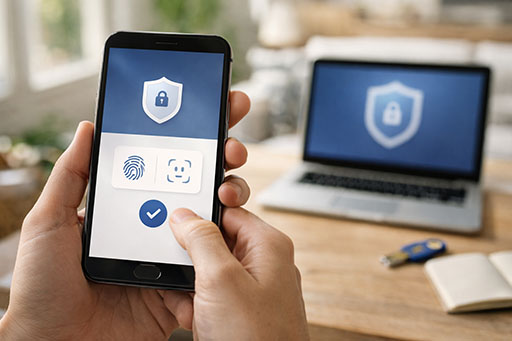
2FA, passkeys, and phishing resistance
2FA basics and the authenticator ecosystem
2FA usually falls under MFA (Multi-Factor Authentication). A common method is TOTP (Time-based One-Time Password) generated by multi-factor authentication apps. The key operational rule is not “use 2FA everywhere,” but “use it on the accounts that can reset other accounts.”
Two must-do habits:
- store recovery codes safely (inside the vault, not in email inboxes)
- store security questions safely (ideally avoid real answers; store the chosen answers as a secure note)
Reduce phishing risk with modern sign-in methods
Phishing remains a major threat because it targets human judgment. The best defense is reducing how often passwords are typed. This is where phishing-resistant login methods help.
Modern standards include FIDO2 and WebAuthn, which power Passkeys. A practical passkeys adoption guide for everyday users: start with one or two high-value accounts and confirm the passkey works across devices before expanding.
High-value accounts worth upgrading first (US angle)
Three areas usually deserve attention early:
- secure email account access because email resets other accounts
- secure banking logins because money and identity are at stake
- protect cloud accounts because cloud access often holds documents, photos, and backup data
Sharing, families, and teams (practical and safe)
Household use cases and boundaries
Sharing is one of the biggest reasons households adopt a manager. Done correctly, it prevents risky behaviors like texting passwords.
A good approach supports secure password sharing without exposing everything. This is especially important for protect shared household accounts such as streaming services, utilities, or smart-home logins. For many homes, a family password manager plan makes sense because it separates personal vaults from shared vaults.
Work and small business rollout basics
Small teams often start informally then grow into a mess. A thoughtful business password manager rollout includes:
- Clear ownership of shared accounts
- Training on saving and sharing correctly
- Minimum standards for 2FA and device locks
Some organizations integrate with identity tools like SSO (Single Sign-On), but even without SSO, teams can adopt credential management best practices that reduce password sprawl. For shared operational items, secure notes storage can hold Wi-Fi credentials, vendor account numbers, or service details without throwing them into random spreadsheets.
“Do this, not that” sharing rules (friendly reality check)
What breaks sharing systems is usually not technology it’s habits:
- Don’t share a master password with anyone
- Don’t keep unmanaged exports of credentials
- Don’t skip recovery planning “because it’s a small team”
A little structure prevents big headaches.
Monitoring, recovery, and preventing lockouts
Know early when something goes wrong
Good tools provide breach monitoring alerts and sometimes dark web monitoring. These are best treated as early warning signals, not as guarantees. If an alert appears:
- Change the password on the affected site
- Ensure the password is unique
- Confirm 2FA is enabled where possible
Prepare for the “I lost my phone” moment
A strong setup includes planning for loss and replacement. Review account recovery options in the password manager itself and set up an emergency access feature if it fits the household or team.
Also review lockout prevention tips such as:
- Keeping recovery codes in the vault
- Having at least two trusted devices where possible
- Using a recovery contact if the platform supports it
Apply the setup to everyday US accounts (examples)
Most readers benefit from targeting the accounts they use weekly:
- secure shopping accounts so saved payment methods aren’t exposed
- secure streaming accounts to avoid account takeovers and unwanted charges
- protect social media accounts because compromised social accounts can be used to scam friends and family
The setup is the same across categories; only the priority changes.
Common mistakes (and how to avoid them)
Mistakes that reduce security
The most common failures are predictable:
- Vault stays unlocked too long
- Master password is short or reused
- Recovery codes are stored in email or screenshots
- Updates and alerts are ignored
The fix is straightforward: tighten timeouts, improve device locks, and treat recovery codes as first-class credentials.
Mistakes that reduce usability (and cause abandonment)
Usability problems cause people to quit:
- Over-categorizing everything until search becomes harder
- Forgetting to enable device unlock methods
- Skipping imports and then feeling “it doesn’t have my passwords”
A manager succeeds when it becomes the default path, not a “security project.”
Maintenance plan: 5 minutes per month
Monthly and quarterly routine
A lightweight routine keeps the vault clean:
- Review the health report
- Change any reused or compromised items
- Remove logins for services no longer used
- Confirm 2FA still works after device changes
This is not a weekly chore; it is a short monthly reset that prevents slow drift.
A calm closing note
The people who stick with password managers are not “security pros.” They simply build a system that is easier than improvising. The moment a suspicious login attempt happens, the system holds because the setup was done once, correctly, and maintained lightly.
Conclusion (what to do today)
A good password manager setup is less about tools and more about habits: fast vault locking, strong device security, 2FA on the manager account, and a consistent way to create unique passwords.
Readers should start with email and banking, confirm autofill works, and then fix the rest in batches. The result is a calmer online life: fewer resets, fewer surprises, and a setup that keeps working even when attention moves elsewhere.
If readers want to share their setup for feedback: “Which combo are you using iPhone + Windows laptop, Android + MacBook, or something else?”
FAQs
1) What should someone do first after installing a password manager in the US?
Direct answer: They should lock down the vault, enable 2FA on the manager, and test two real logins.
Why: Most failures happen because setup stops before the “guardrails” are enabled.
Steps: Set timeouts → turn on 2FA → test a shopping and a subscription login.
My recommendation: Treat the manager like a “master key” and secure it before importing everything.
2) Is it safe to keep passwords in a browser instead of a dedicated app?
Direct answer: It can be acceptable for simple, single-device use, but dedicated apps usually scale better.
Why: Browsers may limit sharing, recovery options, and vault management across mixed devices.
Steps: Compare device coverage, sharing needs, and export/import flexibility.
My recommendation: If the household uses multiple devices or needs sharing, a dedicated manager is typically smoother.
3) How long should a master password be, and what’s realistic to remember?
Direct answer: Long and memorable beats short and “complex.”
Why: Humans forget short complex strings; long phrases are easier to recall and harder to guess.
Steps: Create a long phrase → confirm it’s unique → test it twice before moving on.
My recommendation: Choose a phrase that is easy to type on a phone without errors.
4) If someone switches phones, will they lose access to passwords?
Direct answer: Not if sync and recovery are configured correctly.
Why: Device loss is common; recovery planning prevents lockouts.
Steps: Ensure sync is active → store recovery codes → keep at least one secondary device signed in.
My recommendation: Configure recovery before migrating hundreds of accounts.
5) Do people still need an authenticator app if the password manager supports 2FA?
Direct answer: Sometimes yes; it depends on risk tolerance and convenience.
Why: Separating factors can reduce single-point-of-failure concerns.
Steps: Use manager-based 2FA for low-risk accounts → consider separate authenticator for high-value accounts.
My recommendation: Prioritize email and financial accounts for the strongest, most reliable second factor.
6) How should families handle passwords without sharing everything?
Direct answer: Use shared vaults for household logins and private vaults for personal accounts.
Why: Oversharing increases risk and reduces privacy.
Steps: Create a shared space → move utilities/streaming there → keep banking and email private.
My recommendation: Keep “who can change what” very clear, especially for recovery details.
7) What’s the fastest way to fix hundreds of weak or reused passwords?
Direct answer: Prioritize high-impact accounts first, then change passwords in timeboxed batches.
Why: Trying to fix everything at once is the fastest path to quitting.
Steps: Email → banking → ecosystem account → shopping → social → subscriptions.
My recommendation: Spend 15 minutes a day for a week rather than one exhausting weekend.
8) Are passkeys replacing passwords in 2026 and beyond?
Direct answer: Adoption is growing, but passwords will still exist for a while.
Why: Not every service supports passkeys yet, and users have mixed devices.
Steps: Enable passkeys on one high-value account → confirm cross-device usability → expand gradually.
My recommendation: Start where passkeys are stable and clearly supported; don’t force it everywhere at once.
9) What should someone do if they get a breach alert tied to their email address?
Direct answer: Change the affected password, ensure it’s unique, and enable 2FA immediately.
Why: A breach alert often signals reuse risk across multiple sites.
Steps: Change password → review sessions → enable 2FA → monitor financial accounts.
My recommendation: Treat alerts as a trigger to check the vault’s health report and kill password reuse.
10) Can a password manager help with business accounts and team access?
Direct answer: Yes, especially for controlled sharing, auditing, and onboarding.
Why: Teams without structure drift into insecure sharing habits.
Steps: Define shared vaults → set minimum security rules → train on sharing and recovery.
My recommendation: Start with a small team pilot and build a repeatable onboarding checklist.
Author Bio
Author Bio: Ken writes practical, reader-first guides on privacy and everyday online security. Published by Ahmed Saeed.